General Guides


Task Guides

Values and dates

Creating values and dates and using them in events allows the "Adjustments" feature on the schedule page to work. This feature allows disabling or hiding specified events or making incremental changes to values or dates and observing the effect on the account balances in real time. Creating values and dates can also make things more readable by using formulas to calculate new values or modifiers to change a date. Values and dates can be created by clicking on the additional actions icon above many data grids and selecting the "Edit values..." or "Edit dates..." menu options. This opens a window which shows the currently defined values or dates and allows new entries to be added or existing entries to be edited, deleted or rearranged.

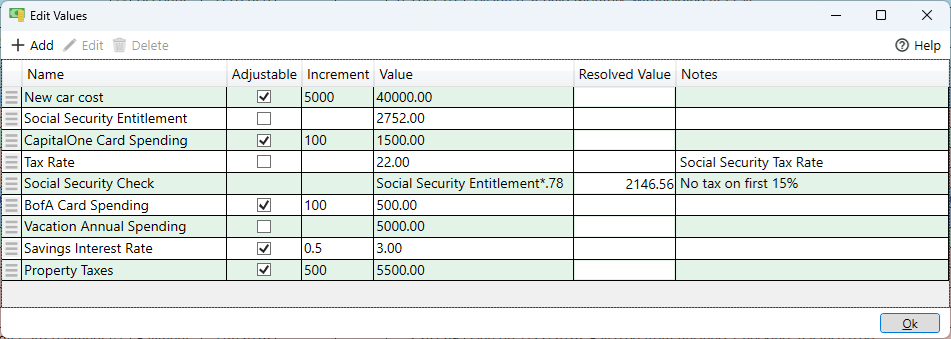
The values window shows the currently defined values and allows adding, editing, deleting or reordering the values. The values are displayed in a grid form with one row per value. There is a column for the name, the "Adjustable" flag, the adjustment "Increment", the "Value", "Resolved Value" and "Notes". The "Resolved Value" column shows a calculated value for any values that use a formula or refer to another value. If the formula can't be resolved a red background is shown. Adjustable values show up in the adjustments window which floats independently of the application and allows you to instantly see how changing a value affects your budget. Note that values defined using a formula can't be adjustable. Only values that are simple numbers can be adjustable. Just assign the dollar amount of an event to an adjustable value, go to the schedule page and open the adjustments window. Using values can give you insight into how changes affect your account balances and cash flow.

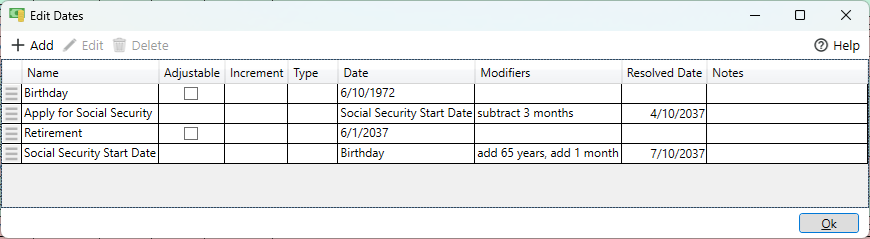
The dates window shows the currently defined dates and allows adding, editing, deleting or reordering the dates. The dates are displayed in a grid form with one row per date. There is a column for the name, the "Adjustable" flag, the adjustment "Increment", increment "Type", the date, "Modifiers", the "Resolved Date" and "Notes". The "Resolved Date" column shows a calculated date for any dates that use modifiers and/or reference other dates. If the date can't be resolved a red background is shown. Adjustable dates show up in the adjustments window which floats independently of the application. Use adjustable dates when defining an event then go to the schedule page and open the adjustments window. Like adjustable values, using adjustable dates can help you see how changes affect your account balances and cash flow.
Adding values

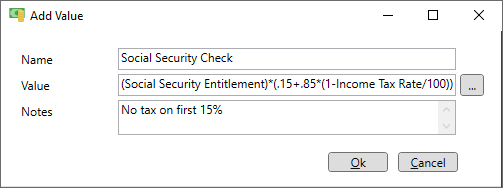
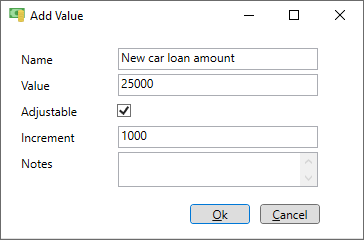
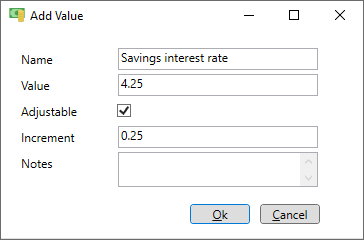
Create a new value by pressing the "Add" button on the "Edit Values" window. When the "Add Value" window appears enter the name and the value. Numerical values are usually dollar amounts but they can also be interest rates or other values used in formulas. If the value is a formula referencing other values use the button with the three dots just right of the value field to paste in one of the other values. Any value that doesn't reference another value can be marked as "Adjustable" by checking the "Adjustable" checkbox. Doing this allows the adjustment increment to be specified in the "Increment" field.


Adding dates

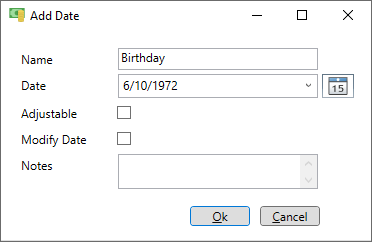
Create a new date by pressing the "Add" button on the "Edit Dates" window. When the "Add Date" window appears enter the name of the date and then the date. The date can reference another date by using the small arrow on the right side of the date field to select the other date. Dates that are simply a date (no reference to another date) can be marked as "Adjustable" by checking the "Adjustable" checkbox. Doing this allows the adjustment increment type and increment to be specified in the respective fields.

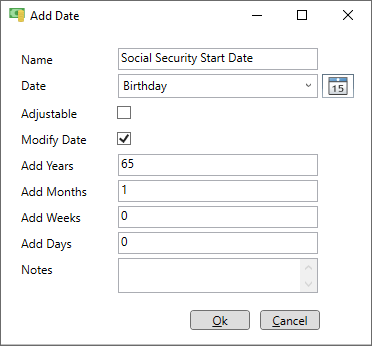
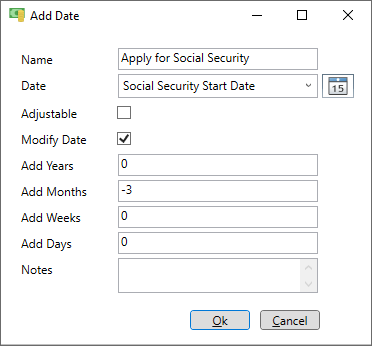
Any date can include modifiers. Just check the modifiers checkbox and 4 fields will appear to specify a fixed number of years, months, weeks or days to add to the date. Negative modifiers subtract from the date while positive numbers add to the date. This can be helpful to define a date that is a specific time interval from some other date. The dates page displays a "Resolved Date" for any dates that reference another date or have modifiers. If the date can't be resolved a red background is shown.


Using value and dates

Defined values can replace the certain fields in any event or account. For user events this would be the Amount field. For accounts this could be the current balance, loan amount, interest Rate or payment amount. To do this select the value from the field's drop-down list or create a new value by clicking on the additional actions icon to the right of the field and selecting the "New value..." menu option. If the value is marked adjustable it will show up in the adjustments window and allow the value to be modified while observing the affect on the schedule page or cash flow page. Values can also be referenced by other values in formulas.

Like values, defined dates can replace certain fields in any event or account. For user events this would be the next event date, next due date and end date. For accounts this would be the next payment due date, next interest paid date or loan origination date. To do this select the date from the field's drop-down list or create a new date by clicking on the additional actions icon to the right of the field and selecting the "New date..." menu option. If the date is marked adjustable it will show up in the adjustments window and allow the date to be modified while observing the affect on the schedule page or cash flow page.


Adjusting values, dates and events

To make the adjustments go to the schedule or cash flow page then click on the additional actions icon near the top and select the "Adjustments..." menu option. This opens the adjustments window where all values, dates and events that have been marked "Adjustable" will show up.


Examples

One way to make use of values and dates is to model a new loan. This is done by creating an account with the "Loan" type and use a value like "Car loan amount" for the loan amount and "Car loan interest rate" for the interest rate. The loan origination date can also be assigned to a new defined date if desired. Make all of these adjustable so they will appear on the adjustments window. Open the adjustments window and click the arrows next to the values or dates and observe how the payment changes and how it affects your accounts on the schedule page or cash flow page.

Another example, would be to assign an adjustable date to when you plan to retire. Use that date as the end date for your paycheck event. Use the adjustment window to modify your retirement date and see how it affects your retirement savings.

To see how the interest rate affects your savings assign an adjustable value to the interest rate on your savings. Open the adjustments window and click the arrows and see how changing that rate affects your account balance and cash flow years later.