Home page
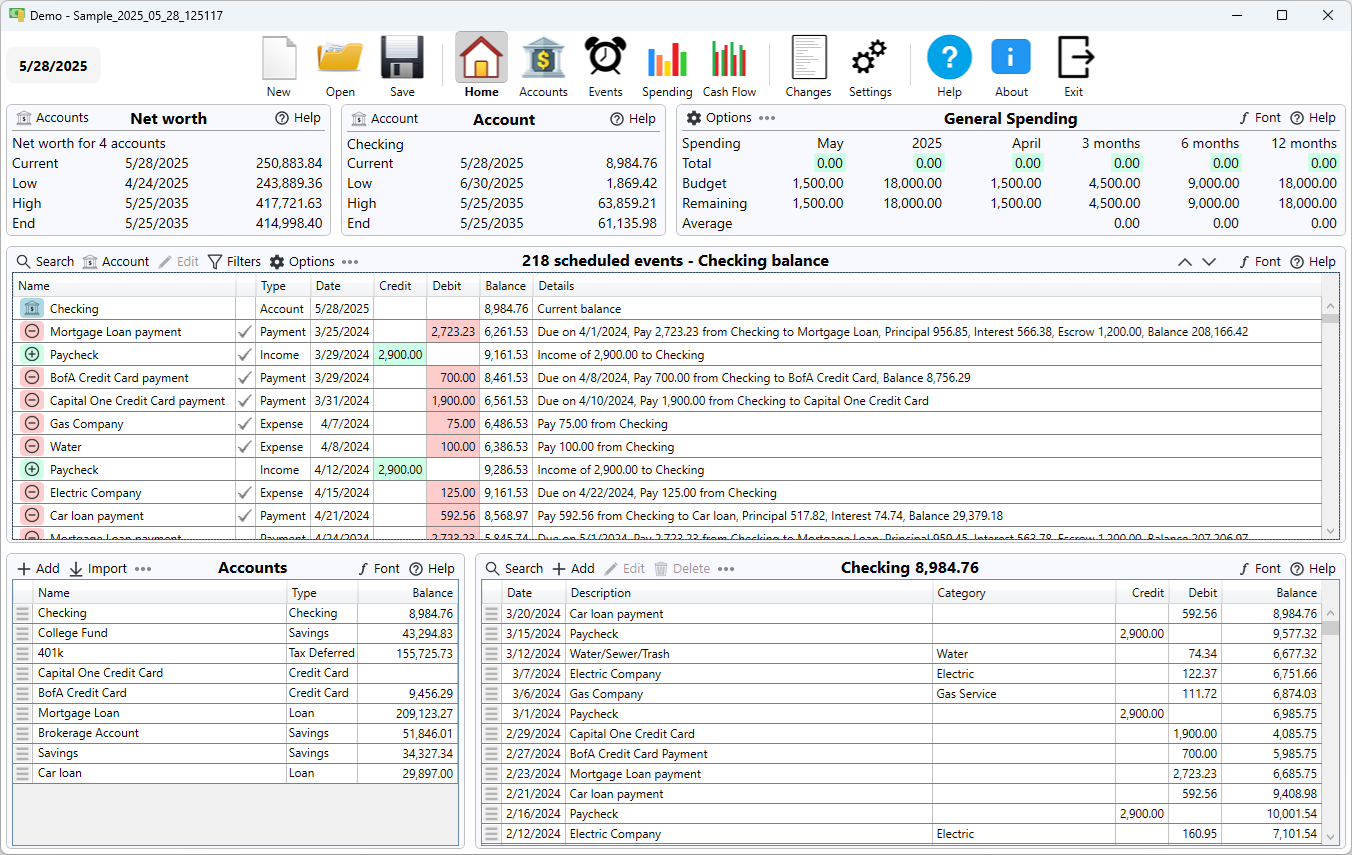
Event instances are completed on the home page. Go to the home page by clicking on the "Home" icon in the main menu at the top. This is where you get a personal financial overview, like net worth and recent spending. It also includes a list of upcoming scheduled events where you can check off the events as they are completed.
At the top of the home page is net worth statistics, account statistics and recent spending. After the accounts is a chronological list of every upcoming event instance, like upcoming bills, paychecks, reminders or other user events that you have created as well as account events for loan payments, credit card payments or interest paid on interest bearing accounts. The "Balance" column shows the balance of the tracked account. Events that are marked hidden on the schedule page are still shown if they are occurring within the preview days specified. Each event instance also has a context menu accessible with a mouse right-click. At the bottom of the home page are the accounts and transactions.
Completing an event
To complete an event just click the check mark just to the right of the event name. Note that only the next occurring instance of the event will have a check mark. If there is another instance shown it will not have a check mark. This is to prevent accidentally completing the wrong event instance. Event instances remain in the list until they are completed.
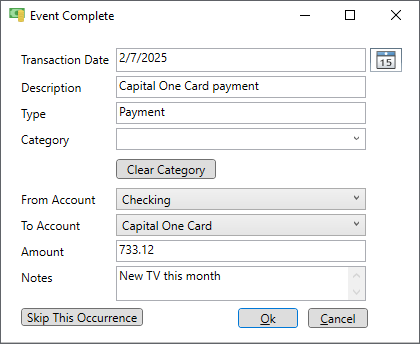
Let's pay a bill. Click on the first bill in the list to bring up the "Event Complete" window. Edit the "Amount" field to reflect the actual amount of the bill. The date of the bill will default to the date shown in the schedule but you can change it to the date you actually paid the bill. If there was no amount due for some reason then you can click the "Skip This Occurrence" button and that event instance will be skipped. Once an event instance is completed the schedule is updated and that occurrence is gone from the schedule. If a bill was paid then a transaction is created in the "From Account" with the appropriate information.